































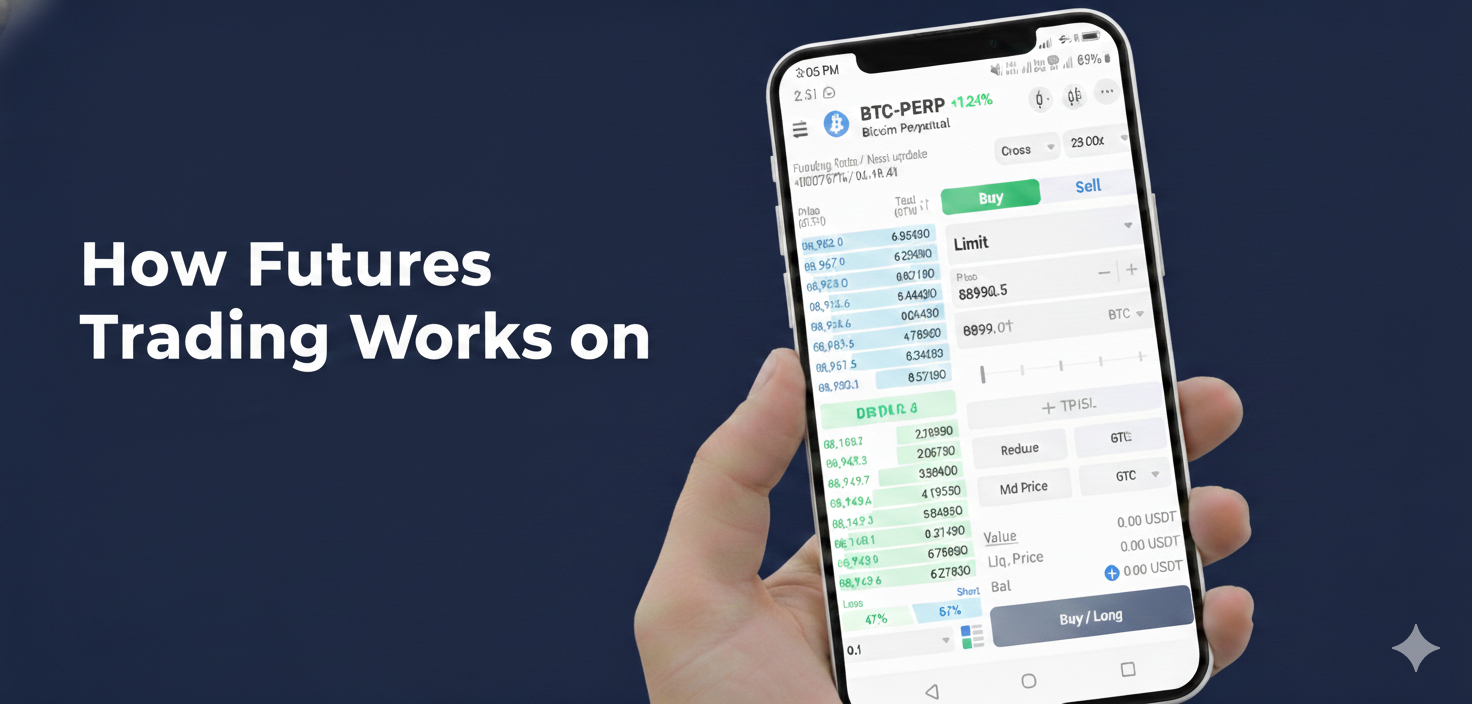
Think of futures trading as making a bet on tomorrow’s price, today. You agree to buy or sell Bitcoin at a set price on a future date. The BTZO futures trading platform on the btzo app lets you do this with leverage, meaning you can control a big position with a little money. This article will walk you through exactly how it works, step by simple step to start trading futures on btzo app.
What's the Big Difference Between Spot and Futures?
Spot trading is like walking into a store and buying a gallon of milk. You pay the price on the shelf, you own the milk, and you hope it doesn’t go sour.
Futures trading is different. It’s like making a contract with the dairy farmer to buy 100 litres of milk next month at today’s price. You don’t own the milk yet, but you’re locked into that price. If the price of milk skyrockets next month, you win. If it crashes, you still have to buy it at the higher agreed price, then you lose.
Traders use futures to make money whether prices go up OR down, and to use leverage to make bigger bets with less cash. But, leverage is a power tool: it builds things fast and can break them faster. BTZO trading app gives you a different experience of futures trading and below steps cover the essentials.
Your First Futures Trade on BTZO App: A Step-by-Step Walkthrough
Forget the confusing charts for a minute. Let’s just tap through the app together.
Step 1: Find the Futures Tab
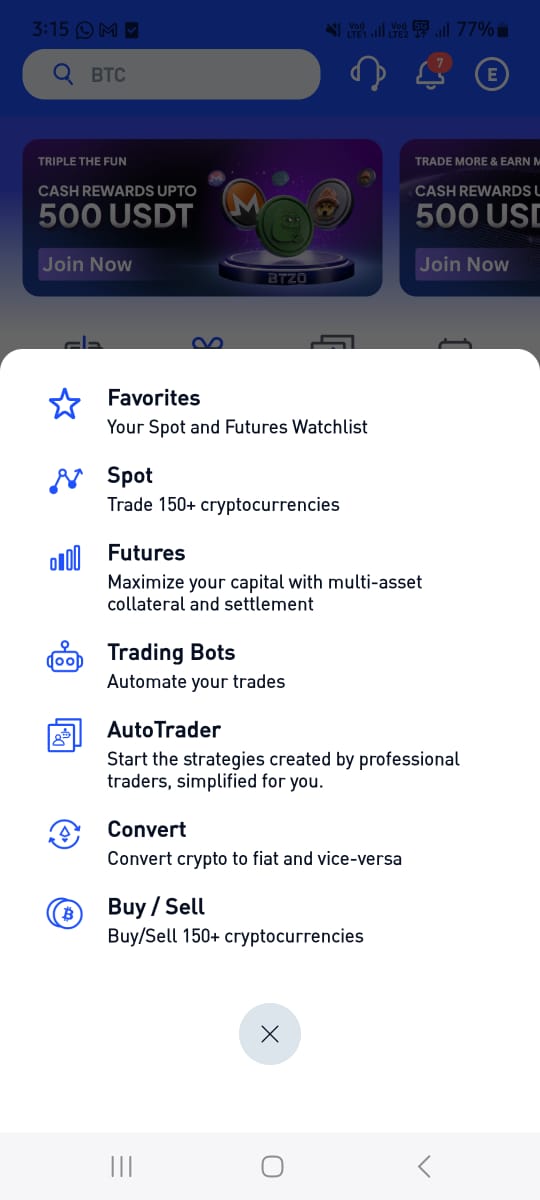
Open your btzo app. On the bottom, you’ll see a big blue button called “Trade” which has tabs like “Favourites,” “Spot,” “Futures,” “Trading Bots,” “Auto Trader,” “Convert,” and “Buy/Sell.” Tap on Futures. This is your new trading arena.
Also Read: How to download BTZO App
Step 2: Choose a Contract.
You’ll see a list like BTC/USDT, ETH/USDT on the top left corner. These are “perpetual contracts”. They don’t expire, so you can hold them as long as you want. Tap on the one you want to trade. This loads the trading screen.
Step 3: Move Your USDT
You can’t trade with an empty wallet. You need to move money into your Futures Wallet. Tap “Wallet,” in the bottom menu and it will direct you to the wallet overview. Find the transfer button, in the futures wallet which is available on the top menu. Once you tap on a futures wallet, it will display the existing amount of your spot wallet and move some USDT from your Spot Wallet to your Futures Wallet. This money is your margin. It is your collateral for the trade.
Step 4: The Trading View.
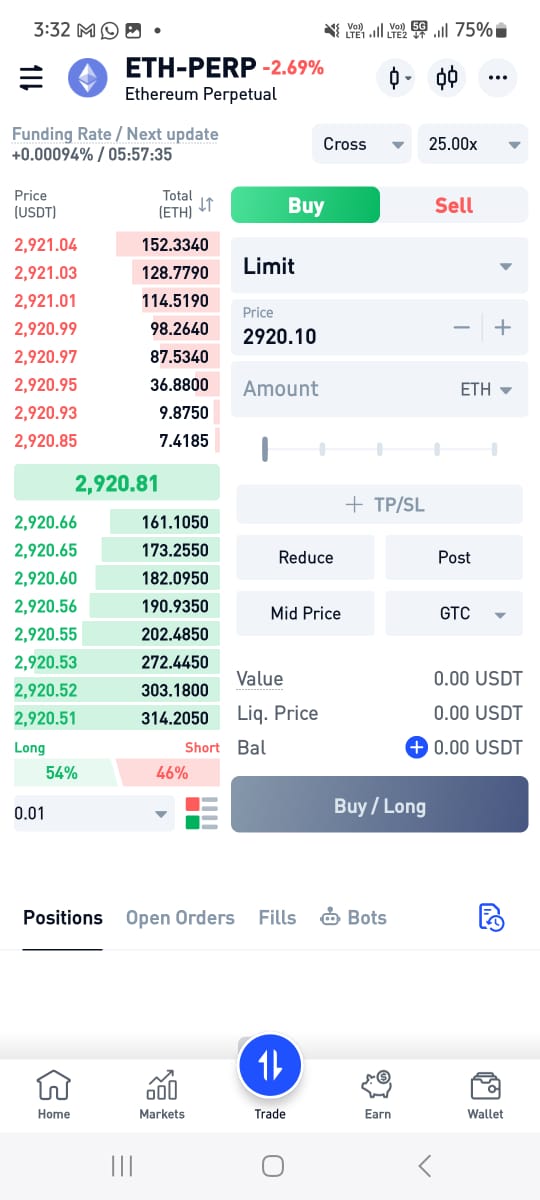
Now you’ll see the trading screen. The big box where you place your order has a few key parts:-
Open Long/Short:
Choose your direction. Buy if you think the price will go up (Long). Sell if you think it will go down (Short).
In the BTZO app, trades are placed using the Buy and Sell buttons. When you press Buy, you are opening a Long position, which means you expect the price to go up. When you press Sell, you are opening a Short position, which means you expect the price to go down. To exit a trade, you simply place the opposite action. Sell to close a Long position or Buy to close a Short position. This makes opening and closing trades simple and easy to understand.
Order Type
This is the most important choice. Don’t just use “Market.” Let’s break down your options
1. Limit Order
- What it does: You set the exact price you want. The trade ONLY happens at your price or better.
- Use it when: You have a specific entry or exit point. “I’ll only buy Bitcoin if it drops to $60,000.”
- Pro Tip: This usually gets you the lower “maker” fee, saving you money.
2. Stop-Loss Order
- What it does: It’s not for entering a trade. It’s for protecting yourself. You set a trigger price (like $58,000). If the price hits that trigger, it automatically places a market order to sell, cutting your losses.
- Use it always: Put this on the second you open a trade. Never trade without one.
3. Take-Profit Order
- What it does: The opposite of a stop-loss. Set a target price where you want to lock in profits. When the price hits it, your position sells automatically.
- Use it when: You have a profit goal. “I’ll sell and take my money if it reaches $70,000.”
Advanced Orders for Smarter Control
The btzo app gives you even finer tools. In simple terms, this is what they mean:
Post Only Order:
This is a special request on your limit order. It says, “Only place my order if it will sit on the book and wait (making liquidity). If placing it would cause it to fill instantly, then cancel it.” Why use it? To guarantee you get the lowest possible trading fee. It’s your fee-saver.
Reduce Only Order:
This is a safety setting. It tells the app, “This order is only allowed to make my position smaller, never bigger.” Why use it? It stops you from accidentally doubling down on a losing trade when you meant to cut losses.
Time in Force (TIF) - The "Expiration Date" for Your Order:
This tells the app how long to keep your limit order working.
- Good Till Cancel (GTC): Your order stays active forever, until you cancel it or it fills. Use this for patient trades.
- Immediate or Cancel (IOC): It’s a rush job. Fill as much as you can RIGHT NOW, cancel the rest. Use it for quick, partial fills.
- Fill or Kill (FOK): All or nothing. “Fill this entire order right this second, or cancel the whole thing.” Use it when you need the full position size immediately.
Step 5: Set Your Leverage.
Before you confirm, you should set your leverage amount. In BTZO app, above buy and sell buttons you may see two boxes. One is for margin mode and the other is for leverage. Click on the left side box and you’ll see a leverage slider. It might go from 2x to 100x. START AT 5X OR LESS. This multiplies both your gains and losses. 10x leverage means a 1% price move is a 10% gain or loss for you. Turn this dial carefully.
Step 6: Confirm, Monitor, and Manage
Tap “Buy/Long” or “Sell/Short.” You now have an open position. Watch your Liquidation Price. This is the danger zone. If the market price hits this, your trade is automatically closed at a total loss. You can avoid this by adding more margin or moving your stop-loss.
You're Ready to Trade. Start Here
BTZO futures trading puts powerful tools in your pocket. The key isn’t using all the leverage at once. It’s using the right order types to control your risk and cost.
Start with a limit order and a stop-loss. Use low leverage. Treat your first few trades like a practice drill, not a gold rush.
Your next step is to see it in action
Open the BTZO app right now. Go to the Futures tab pressing the “Trade” button, pick a market, and just set up a limit order and a stop-loss (you don’t have to confirm it). Get familiar with the controls. Then, when you’re ready, start small.
FAQ
You don’t need thousands. The minimum is the initial margin. For example, to control 0.001 BTC with 5x leverage, you might only need $15-$20 in your futures wallet. The app will show you the exact required margin before you confirm.
If your trade goes badly and hits the liquidation price, it happens fast. The app will automatically close your position. You’ll get a notification and see the closed trade in your history. The money you used as margin for that trade will be gone. This is why the stop-loss order is your best friend.
Yes! This is a huge advantage of futures. If you think the price will drop, you open a “Sell” or “Short” position. You profit when the price falls. It’s how traders make money in bear markets.